
Animated infographic videos: how to turn numbers into charts people watch
Which chart to use for which story, how to keep data honest in motion, and how to make animated infographic videos from a few numbers.
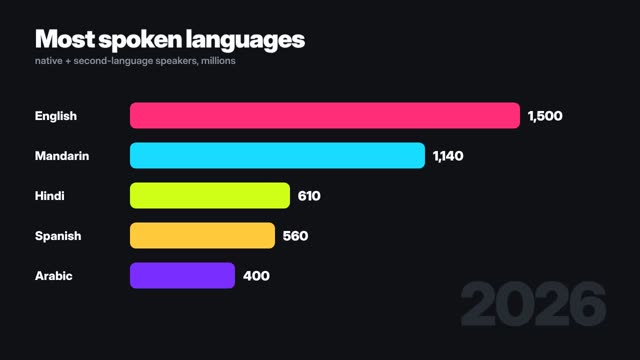
Why motion helps data
A chart that builds in front of you creates a small moment of suspense: which bar wins, how far the funnel drops, where the needle stops. That moment is what keeps a viewer on a data video long enough to take in the point.
Match the chart to the story
Ranking: a bar race. Drop-off: a funnel. One percentage: a gauge or donut. Hierarchy: a pyramid. Head to head: a versus card. Where: a world map. One astonishing figure: a big-number reveal with a small chart underneath for context.
If you can't say the story in one sentence ('Mandarin is second, but Hindi is closing in'), you're not ready to pick the chart.
Keep it honest
Animation makes it easy to exaggerate: a bar that overshoots and settles, an axis that starts at 90%. Start axes at zero for bars, label units, and cite the source on screen. ClickPop's infographic templates draw every value exactly from your numbers, so the motion never invents data.
Making one in ClickPop
Open Faceless Studio, choose Infographic, paste the numbers with labels and a headline, and pick the chart. Set brand colours, choose widescreen or vertical, and render. Narration is optional; many data clips work best with music and on-screen text alone.
Where they perform
Finance and economics channels, LinkedIn posts, newsletter headers, pitch decks, annual reports and internal updates. Vertical versions do well on Shorts and Reels when the headline is a question the chart answers.