
App Store and Google Play preview videos made with AI
How to plan and build an App Store or Google Play preview video with AI around real app footage, with a shot plan and the store rules to check.
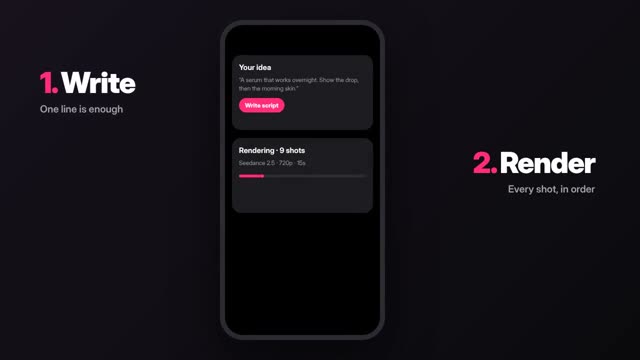
What a preview video is and where AI fits
An App Store preview or Google Play promo video shows people what your app does before they download it. The core of it has to be your real app, captured from a device. AI helps with everything around that footage: the opening hook, motion graphics, captions, device framing, voiceover and the cut.
Apple and Google both expect the preview to represent the actual app. A video made of generated screens that do not exist will get rejected or, worse, disappoint people who install it. Treat AI as the editor and designer, not as a replacement for screen recordings.
Check the store rules first
Each store publishes its own requirements for length, resolution, orientation, file type and what can appear in the video. They change, so read the current pages before you plan: Apple's App Store Connect help for app previews and Google Play Console help for preview videos. Google Play uses a YouTube link for its promo video, so your video also follows YouTube's rules.
Things to look for in those pages:
- Allowed lengths and the exact resolutions for each device size.
- Whether footage must be captured from the app itself, and how much non-app content is allowed.
- Rules on showing people, hands and devices around the screen.
- Rules on pricing, rankings, awards and references to other platforms.
- Whether audio is required, optional or muted by default.
Plan the video around three moments
People decide fast in a store listing, and many watch without sound. Structure the preview around three moments of real value in your app, not a tour of every screen.
- Moment one: the main thing the app does, in the first seconds.
- Moment two: the thing that makes it different.
- Moment three: the result the user ends up with, such as a finished plan, a saved budget or a booked class.
Each moment is a screen recording plus one line of on-screen text. Everything else is optional.
Worked example: a meal-planning app
Here is a shot plan for a portrait preview of a fictional meal-planning app. Screen recordings are real; AI is used for the opener, text and transitions.
- Opener: an animated title in Swiss-style kinetic type: Plan a week of dinners in minutes. Made in Faceless Studio so every letter is exact.
- Moment one: screen recording of picking three dinners from suggestions. Text: Pick what you like.
- Moment two: screen recording of the shopping list building itself from those recipes. Text: Your list writes itself.
- Moment three: screen recording of the week view, filled in. Text: Your week, sorted.
- Close: the app icon and name on a clean background, animated with a short reveal.
For a promo video outside the stores, such as an ad or a social clip, you can add a fictional adult character cooking in a kitchen with a phone on the counter. Keep that footage out of the store preview unless the store's current rules allow it.
How to build it step by step
- Record your screens on a real device or simulator at the size the store asks for. Use clean demo data: no real users' names, emails or photos.
- Trim each recording to the moment that matters. Cut loading screens.
- Make the opener and text cards in Faceless Studio at /app/faceless, where kinetic type and motion graphics are drawn in code, so text stays sharp and spelled right.
- Use Promo Video at /app/promo for a separate social or web promo; paste your app's website and it drafts a product promo you can edit.
- Add captions for every line of voiceover, since many people watch muted.
- Export one version per required device size and orientation, then check each against the store's current spec before upload.
What to keep out
- Generated screens or features that do not exist in the current build.
- Real people's photos or names in demo data without permission. Use fictional data.
- Other companies' logos, apps or devices in a way the store rules do not allow.
- Prices, discounts or chart rankings in the video. These go out of date and are often restricted.
- Copyrighted music. Use licensed or generated music.
- Claims you cannot back up, especially for health, finance or education apps. No promised outcomes.
Mistakes to avoid
Do not open with your logo. The first seconds should show the app doing its main job. Do not cram every feature in; three moments are easier to remember than ten. Do not use tiny text: if it is hard to read on a phone in the store, it does not work. And update the preview when the interface changes, because an old preview makes the app look abandoned.
Do not reuse one cut for every market either. If you sell in several countries, translate the on-screen text and voiceover, and record the app in each language so the interface matches the captions. ClickPop's AI voices cover 30+ languages, which makes the voice part quick; the screen recordings still need to come from the localized build.
Finally, watch the preview inside a test listing on a real phone before you submit. Check that the first frame works as a still, because stores often show a poster frame before the video plays, and that nothing important sits under the store's play button or edges.
Questions
Can I use AI-generated footage in an App Store preview?
Store previews must represent the real app, so build them around real screen recordings. Use AI for titles, motion graphics, captions and voiceover, and check Apple's current preview guidelines.
Is a Google Play promo video different from an App Store preview?
Yes. Google Play uses a YouTube video link, while Apple hosts preview files in App Store Connect. Check both stores' current pages for format and content rules.
Do app preview videos need sound?
Plan for viewers with sound off. Put every key point in on-screen text and treat voiceover and music as extras.