
Why text breaks in AI video (and what to do instead)
Why AI video models garble words, numbers and logos, and the reliable fixes: overlays in the edit, code-drawn motion graphics, and prompts that leave room.
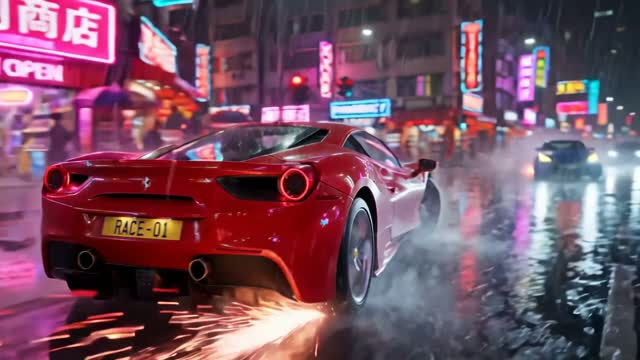
Why it happens
AI video models draw pixels, not letters. They learn what text looks like from images, so they can produce shapes that resemble words, but they do not spell the way a keyboard does. That is why signs come out almost right, numbers shuffle between frames, and a word that looks fine in frame one melts by frame forty.
Motion makes it worse. A still image model only has to get the letters right once. A video model has to keep them right across every frame while the camera and lighting change. Each frame is another chance for a letter to shift.
The fix is not a better prompt. It is to stop asking the video model to do a typesetter's job. Put exact text on top of the video, or draw it with a tool that renders text as text.
What tends to break
- Signs, menus and posters in the background of a scene.
- Product labels and packaging copy.
- Prices, dates, phone numbers and any figure that must be exact.
- Logos. And third-party logos should not be in your videos at all.
- Charts and diagrams with labeled axes.
- Long phrases. Short words have a better chance than sentences, but none are guaranteed.
If the text has to be right for the video to work, such as a price in an ad or a step number in a tutorial, treat the model's version as decoration at best.
Fix one: overlays in the edit
The simplest fix is to leave text out of the prompt and add it afterward. Titles, prices, captions and calls to action go on top of the clip as real text, so every letter is exact and stays still.
Prompt the shot with room for that text. Ask for "empty space in the upper third" or "plain wall behind the subject" so your overlay has a clean place to sit. If you draw a first frame, compose it with the text area in mind.
Add captions for every spoken line too. Many viewers watch with sound off, and captions are text you control completely.
Fix two: draw it in code
For videos where the text and numbers are the point, like explainers, infographics, charts and kinetic typography, use a tool that draws them precisely. ClickPop's Faceless Studio draws diagrams, charts and kinetic type in code, so every word and number is exact. It adds narration, music and captions on top.
It also has 40+ motion graphics and infographic styles, such as Swiss, isometric, whiteboard, risograph, hologram and paper cut. You get a designed look without hoping a video model spells "quarterly revenue" correctly.
You can combine both approaches. Use an AI video clip as a background or b-roll, and put code-drawn text and charts over it.
Worked example: a product ad with a price
A 12-second ad for a fictional ceramic mug, with the price and a call to action on screen.
- Prompt: "Close-up of a speckled blue ceramic mug on a light oak table, steam rising, morning sun from the right. Slow push-in. Empty space in the upper third of the frame. No text, no labels." Try it
- Overlay at 2 s: product name in your brand font, upper third.
- Overlay at 6 s: the price, large and clear.
- Overlay at 9 s: "Shop now" and your website.
- Captions: if there is a voiceover, caption it in full.
Note the "No text, no labels" line in the prompt. It reduces the chance of the model inventing a label on the mug that you then have to hide.
Fix three: when you want text in the scene
Sometimes text belongs in the world, like a neon sign in a night scene. If it is decoration, let the model try and accept that it may not be readable. Keep it short, out of focus or in the background.
If it must be readable, draw the first frame with an image model, check the text, and fix it in the still before animating. Then keep camera movement gentle so the sign does not have to change much between frames. Still, the most reliable route for readable text remains an overlay or a tracked graphic added in the edit.
Planning text before you render
Decide where every piece of text will live before you write a single prompt. A short plan saves re-renders later.
- List every word and number the viewer must read: product name, price, offer, website, steps.
- Mark each one as overlay, caption or code-drawn graphic. None of them goes in the video prompt.
- Note where on screen each overlay sits, and add matching empty space to the prompts.
- For vertical video, keep text away from the edges and the bottom, where platform buttons and captions often sit. Check the platform's current safe-zone guidance.
- Choose one font and one text style for the whole video so overlays look intentional.
With that plan, the video model only has to do what it is good at: light, motion, texture and mood.
Mistakes to avoid
- Re-rendering again and again hoping the spelling comes out right.
- Putting prices or figures that must be exact into the prompt.
- Asking for real brand logos in a scene. They are not allowed and rarely render cleanly.
- Forgetting to leave space in the frame for your overlay.
- Using AI-drawn charts where the numbers matter. Draw them in code.
Questions
Why can't AI video spell?
Video models generate pixels that look like text rather than writing letters, and they must keep those shapes stable across many frames, so words drift and garble.
How do I add text to an AI video?
Leave text out of the prompt, leave space in the frame, and add titles, prices and captions as overlays in the edit.
What is the best way to make infographic videos with AI?
Use a tool that draws charts and text in code. ClickPop's Faceless Studio does this so every word and number is exact.