
Animated map and route videos: travel, delivery and history
How to make animated map and route videos: accurate base maps, route line timing, label sizes for phones, camera moves per leg and a full road-trip scene list.
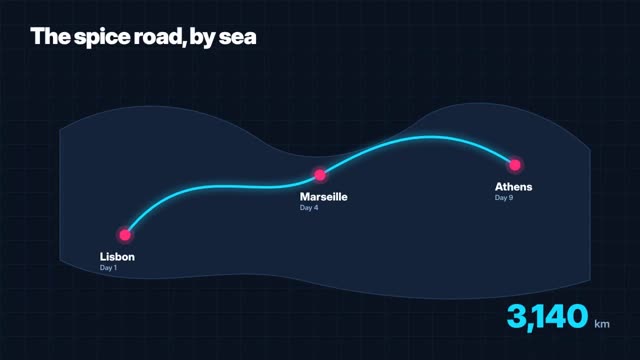
What an animated route video needs
An animated map or route video draws a line from place to place while the camera follows, with a label and often a photo or clip at each stop. To make one, start from an accurate map you have the right to use, plan each leg as a beat of a few seconds, and keep labels large and few.
Route videos suit travel itineraries, tour operators, delivery or service areas, expansion stories (“from one shop to six towns”), and history topics like trade routes or expeditions. They work because the viewer always knows where they are and what comes next.
Get the geography right first
Generative video models invent geography. Ask one for “a map of the coast” and you may get roads, rivers and coastlines that do not exist. For anything a viewer might know, build the map from real data.
- Use a map source that allows your use. Open map data such as OpenStreetMap is free to use with attribution. Check the license terms of any source.
- Simplify: hide minor roads, small labels and terrain unless they matter to the story.
- For a stylized look, draw a schematic map, like a subway diagram, with stops as dots and the route as a clean line. It is accurate about order and rough position without claiming detail.
- If you use AI to add texture or a camera move over a real map, check every frame for invented details before you publish.
Design for small screens
Maps are dense. On a phone you have to strip them back further than feels natural.
- Place labels: 48 to 64 px for the current stop, 32 to 40 px for other places, and no more than four labels visible at once.
- Route line: 10 to 16 px wide on a 1080 px canvas, in one bright color, with a darker outline so it reads on light and dark areas.
- Stop markers: 36 to 48 px dots. The current stop can pulse once when you arrive.
- Base map: muted, low contrast. Two or three tones for land, water and borders.
- Info cards: one per stop, 3 to 7 words, at 56 to 72 px, placed where the map is empty.
Keep the important part of the route in the middle 60 percent of a vertical frame. Tilting the map to a slight 3D angle gives depth, but keep labels flat and facing the viewer.
Pacing each leg
- Opening: full route visible for 1.5 to 2 seconds so the viewer sees the whole journey.
- Each leg: the line draws over 1.5 to 3 seconds with the camera following and easing in and out.
- Arrival: 0.5 seconds of stillness, then the stop label and card.
- Stop content: a 2 to 4 second clip or photo per stop, or skip straight to the next leg for a fast cut.
- Ending: pull back to the full route with the title or call to action for 2 to 3 seconds.
Vary leg length to match real distance where you can. A short hop and a long crossing at the same speed confuses the sense of scale.
Full example: a five-stop road trip
This 45-second vertical scene list is for a fictional tour company offering a coastal drive. Use your own route and stops.
- 0–2 s · Full route, five dots, title “5 days on the coast” at 80 px. VO: “Five days, one coastal road.”
- 2–5 s · Zoom to stop 1. Label “Day 1 · Harbor town.” Card: “Start with fresh fish.”
- 5–9 s · Clip: market stalls at sunrise.
- 9–12 s · Line draws north. Label “Day 2 · Cliff walk.” Card: “Golden hour trail.”
- 12–16 s · Clip: path along cliffs at sunset.
- 16–19 s · Line crosses a bay. Label “Day 3 · Island ferry.”
- 19–23 s · Clip: ferry deck, wind in a flag.
- 23–27 s · Line goes inland. Label “Day 4 · Vineyard stay.”
- 27–31 s · Clip: rows of vines, slow push.
- 31–35 s · Line returns to coast. Label “Day 5 · Lighthouse.”
- 35–40 s · Clip: lighthouse at dusk.
- 40–45 s · Pull back to full route. “Book the trip · Link in bio.”
A sample prompt for one stop clip: “Slow dolly along a cliff-top footpath at golden hour, sea below, wildflowers in the foreground, no people, warm film grade.”
Try this prompt in Create VideoMaking it in ClickPop
Build the map layer as an image from real data, then use it as the first frame in Create Video and choose a motion graphics style such as Swiss for labels and cards. Generate the stop clips with text prompts or your own photos. Faceless Studio can add narration, music and captions and draw labels in code so place names are spelled right. Check each frame of any AI camera move over the map against your source.
Mistakes to avoid
- Generating the whole map with a video model and trusting it.
- Too many labels. Show only where you are and where you are going.
- Constant camera spin. Use one move per leg.
- Forgetting map attribution required by the data license.
- Disputed borders drawn without care. If borders matter to your audience, follow an authoritative source and keep them neutral.
Questions
Can AI generate an accurate map animation?
Video models often invent roads and coastlines. Use a real map as the base or first frame and let AI handle styling, motion and stop clips.
How long should each leg of a route animation take?
About 1.5 to 3 seconds per leg, with a short pause at each stop. Longer legs can take a little longer to suggest distance.
Do I need permission to use a map in a video?
It depends on the source. Open map data allows use with attribution, while many commercial map services have their own terms. Check the license of the map you use.