
Kling 3.0 guide: motion, action and prompts
How to use Kling 3.0 Pro and Standard for motion-heavy shots: 15-second clips at 720p, upscaling, action prompts you can copy and how to test takes.
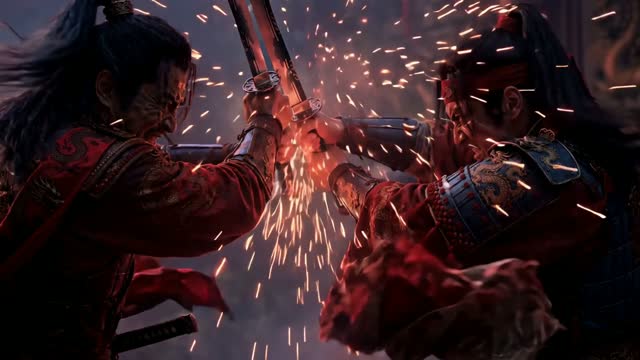
What Kling 3.0 is good for
Kling 3.0 comes in Pro and Standard versions, renders clips up to 15 seconds at 720p, and is the model to reach for when the shot is about movement. Use it for action, dance, sport, chases, physical comedy and fast camera work.
Its native output is 720p. In ClickPop you can upscale a 720p clip to 1080p or 4K, so plan to upscale the final take if it is going out as a full-screen post or ad.
Pro and Standard are two versions of the same model. Check the credit price of each, shown before every render, use the one that fits your budget to find the motion you want, then decide whether the hero shot is worth trying on the other.
Fifteen seconds is enough for a full move with a setup and a landing. Most action shots need less. Ask for 5 to 8 seconds while testing, so each take is cheaper and you can run more of them, then extend the length once the move looks right.
Shots that suit Kling 3.0
- A skateboarder landing a trick, tracked from the side.
- A dancer spinning in a studio with a slow orbit around her.
- A dog sprinting across a beach toward the camera.
- A chef flipping vegetables in a pan with flames rising.
- A runner on a city street at dawn, handheld follow shot.
What these share is a clear physical action with a beginning and an end. Motion models do best when the movement has a shape: a jump, a turn, a throw, a landing.
How to prompt for motion
Describe the movement as a sequence with verbs. "Crouches, springs off the wall, twists in the air and lands on one knee" is a motion brief. "Cool parkour shot" is not.
Try this prompt in Create VideoSay how fast things move and where the camera goes. Speed words help: slowly, suddenly, in one fluid motion, in slow motion. Camera words help too: tracking from the left, low angle, orbit, whip pan.
Give the subject room. Wide and medium shots leave space for full-body movement. Tight close-ups of fast action tend to crop limbs or lose the shape of the move.
Keep the background simple for your first takes. A plain studio or an empty street lets the model spend its effort on the motion. Add crowds and clutter later if the shot needs them.
Worked example: a 10-second action shot
Paste this into Create Video with Kling 3.0 Standard selected:
"Wide shot, an empty concrete skate park at golden hour. A skateboarder in a red hoodie rolls toward a ledge, ollies onto it, grinds along the edge and lands cleanly on the far side. Camera tracks alongside at hip height, then slows as he lands. Long shadows, warm backlight, light dust in the air."
Try this prompt in Create VideoRun two or three takes. Pick the one where the board, feet and landing stay consistent. If you need it sharper for the final, render the chosen prompt on Kling 3.0 Pro and upscale to 1080p.
- Take 1 to 3 on Standard: judge the shape of the move.
- Best prompt on Pro if the shot is the hero of the video.
- Upscale the final take to 1080p or 4K.
Keeping a character consistent in action
Fast motion is where faces and outfits most often change between shots. If the same person appears in several action clips, design them once in Characters and draw reference photos from the front, three-quarter angle and full body.
If you already have a dance or move you want copied, use Motion Control. Upload the reference clip and your character performs those moves. That gives you more control than describing a choreography in words.
Camera moves that suit action
Action reads best when the camera has a clear job. Pick one move per clip and say it plainly. These pair well with motion-heavy shots:
- Tracking shot: the camera moves alongside the subject at the same speed. Good for runners, riders and skaters.
- Low angle: the camera sits near the ground looking up. Makes jumps and landings feel bigger.
- Orbit: the camera circles the subject. Good for dance spins and a hero pose after a move.
- Handheld follow: the camera trails behind the subject with a slight shake. Good for chases and street scenes.
- Locked-off wide: the camera does not move at all. Good for physical comedy where the whole body must stay in frame.
Avoid combining a fast subject with a fast, complex camera move in the same clip. If both the dancer and the camera are spinning, the result is hard to read. ClickPop's Presets include 16 camera moves you can apply instead of writing the move from scratch.
For slow motion, say so in the prompt and keep the clip short. A two-second jump stretched across six seconds of slow motion is often more striking than ten seconds of real-time action.
Mistakes to avoid
- Describing a vibe instead of a movement. Write the action as verbs in order.
- Packing a whole fight scene into one clip. Break it into separate moves and cut them.
- Extreme close-ups of fast action. Pull back so the body has room.
- Skipping the comparison. Render the same prompt on Kling and one other model and pick by what you see.
- Forgetting the upscale. 720p looks soft on a large screen; upscale the take you publish.
Questions
How long can Kling 3.0 videos be?
Up to 15 seconds per generation, in both Pro and Standard.
What resolution is Kling 3.0?
It renders at 720p. ClickPop can upscale the result to 1080p or 4K.
Should I use Kling 3.0 Pro or Standard?
Draft on Standard to find the motion, then try Pro on the shot that matters most and compare the two takes.